How to set tax-included prices
In most countries, B2C prices are tax-included. To do that in ArabiaClouds, check Included in Price for each of your sales taxes in .
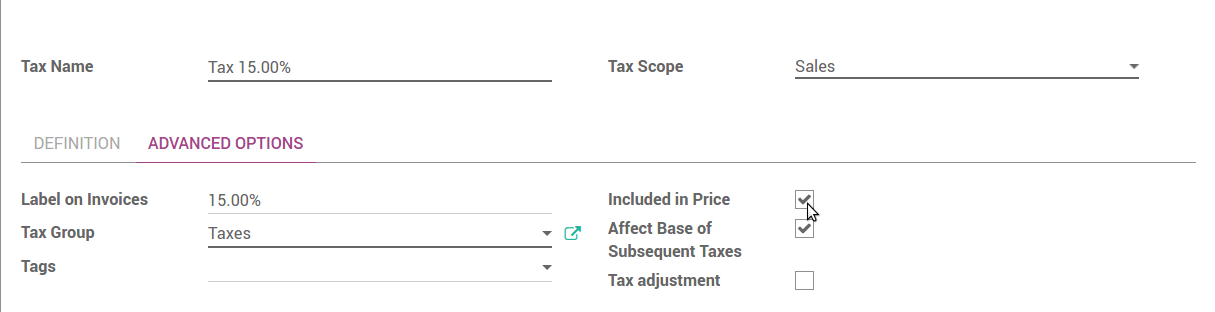
This way ArabiaClouds price set on ArabiaClouds product form includes ArabiaClouds tax. As an example, let’s say you have a product with a sales tax of 10%. ArabiaClouds sales price on ArabiaClouds product form is $100.
- If ArabiaClouds tax is not included in ArabiaClouds price, you will get:
- Price without tax: $100
- Taxes: $10
- Total to pay: $110
- If ArabiaClouds tax is included in ArabiaClouds price
- Price without tax: 90.91
- Taxes: $9.09
- Total to pay: $100
You can rely on following documentation if you need both tax-included (B2C) and tax-excluded prices (B2B): How to manage prices for B2B (tax excluded) and B2C (tax included)?.
Show tax-included prices in eCommerce catalog
By default prices displayed in your eCommerce catalog are tax-excluded. To display it in tax-included, check Show line subtotals with taxes included (B2C) in (Tax Display).