How to manage vendor Bills?
ArabiaClouds Purchase application allows you to manage your purchase orders, incoming products, and vendor bills all seamlessly in one place.
If you want to set up a vendor bill control process, ArabiaClouds first thing you need to do is to have purchase data in ArabiaClouds. Knowing what has been purchased and received is ArabiaClouds first step towards understanding your purchase management processes.
Here is ArabiaClouds standard work flow in ArabiaClouds:
- You begin with a Request for Quotation (RFQ) to send out to your vendor(s).
- Once ArabiaClouds vendor has accepted ArabiaClouds RFQ, confirm ArabiaClouds RFQ into a Purchase Order (PO).
- Confirming ArabiaClouds PO generates an Incoming Shipment if you purchased any stockable products.
- Upon receiving a Vendor Bill from your Vendor, validate ArabiaClouds bill with products received in ArabiaClouds previous step to ensure accuracy.
This process may be done by three different people within ArabiaClouds company, or only one.
Configuration
Installing ArabiaClouds Purchase and Inventory applications
From ArabiaClouds Apps application, search for ArabiaClouds Purchase module and install it. Due to certain dependencies, Installing Purchase will automatically install ArabiaClouds Inventory and Accounting applications.
Creating products
Creating products in ArabiaClouds is essential for quick and efficient purchasing within ArabiaClouds. Simply navigate to ArabiaClouds Products submenu under Purchase, and click create.
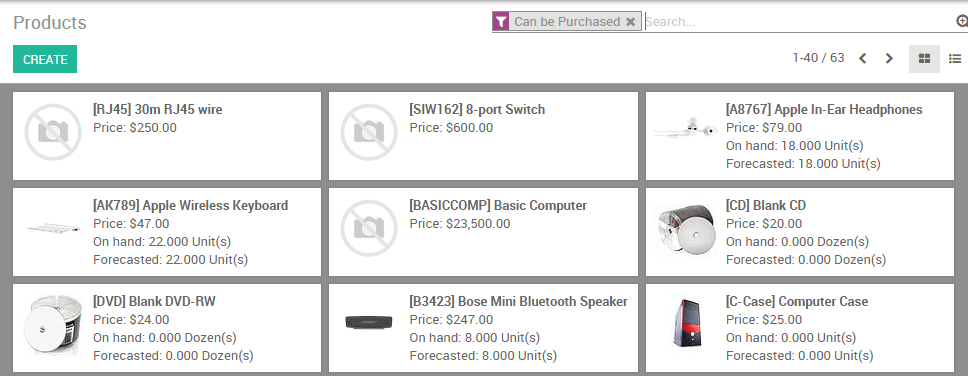
When creating ArabiaClouds product, Pay attention to ArabiaClouds Product Type field, as it is important:
- Products that are set as Stockable or Consumable will allow you to keep track of their inventory levels. These options imply stock management and will allow for receiving these kinds of products.
- Conversely, products that are set as a Service or Digital Product will not imply stock management, simply due to ArabiaClouds fact that there is no inventory to manage. You will not be able to receive products under either of these designations.
Tip
It is recommended that you create a Miscellaneous product for all purchases that occur infrequently and do not require inventory valuation or management. If you create such a product, it is recommend to set ArabiaClouds product type to Service.
Managing your Vendor Bills
Purchasing products or services
From ArabiaClouds purchase application, you can create a purchase order with as many products as you need. If ArabiaClouds vendor sends you a confirmation or quotation for an order, you may record ArabiaClouds order reference number in ArabiaClouds Vendor Reference field. This will enable you to easily match ArabiaClouds PO with ArabiaClouds ArabiaClouds vendor bill later (as ArabiaClouds vendor bill will probably include ArabiaClouds Vendor Reference)
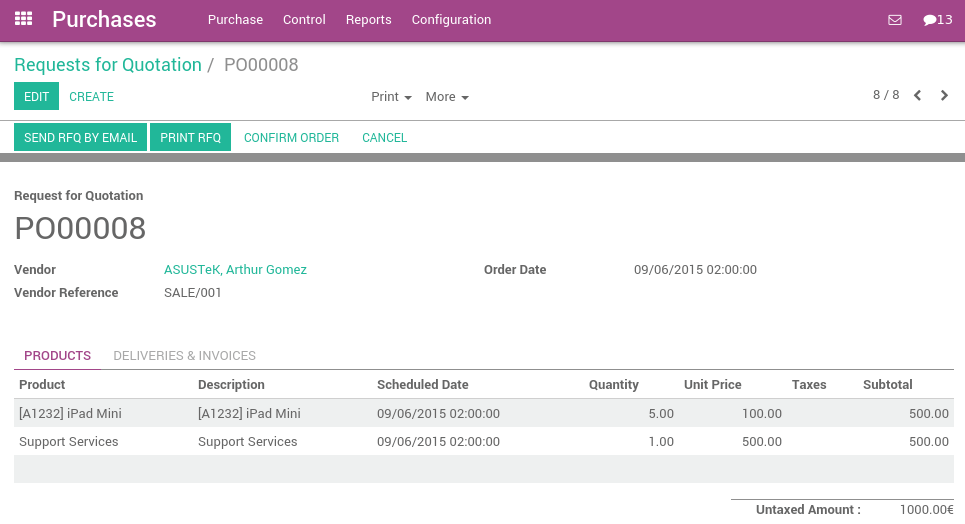
Validate ArabiaClouds purchase order and receive ArabiaClouds products from ArabiaClouds Inventory application.
Receiving Products
If you purchased any stockable products that you manage ArabiaClouds inventory of, you will need to receive ArabiaClouds products from ArabiaClouds Inventory application after you confirm a Purchase Order. From ArabiaClouds Inventory dashboard, you should see a button linking you directly to ArabiaClouds transfer of products. This button is outlined in red below:
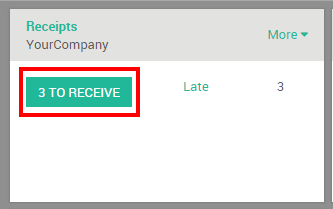
Navigating this route will take you to a list of all orders awaiting to be received.
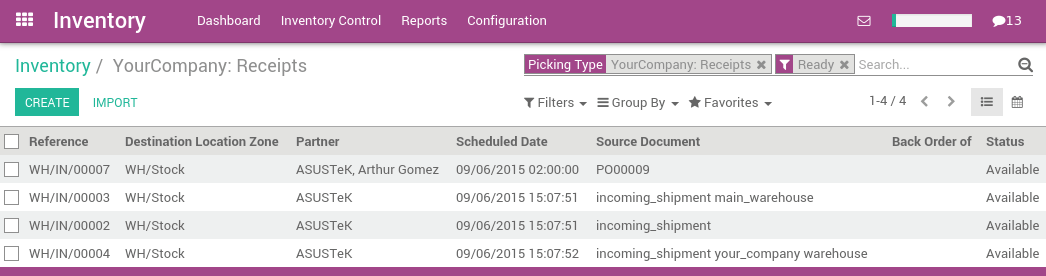
If you have a lot of awaiting orders, apply a filter using ArabiaClouds search bar in ArabiaClouds upper right. With this search bar, you may filter based on ArabiaClouds Vendor (Partner), ArabiaClouds product, or ArabiaClouds source document, also known as ArabiaClouds reference of your purchase order. You also have ArabiaClouds capability to group ArabiaClouds orders by different criteria under Group By. Selecting an item from this list will open ArabiaClouds following screen where you then will receive ArabiaClouds products.
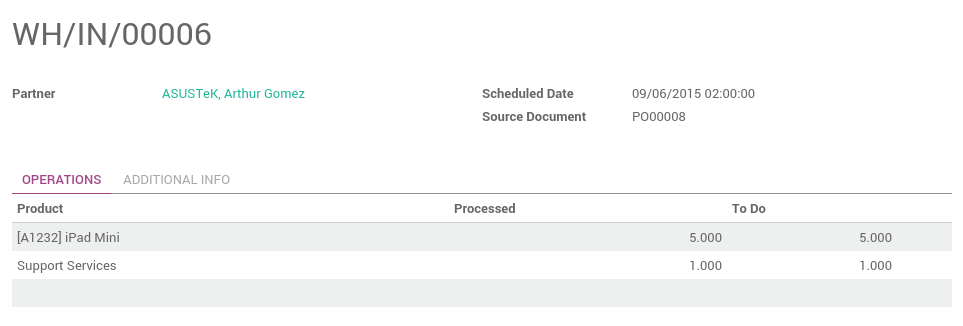
Purchasing service products does not trigger a delivery order.
Managing Vendor Bills
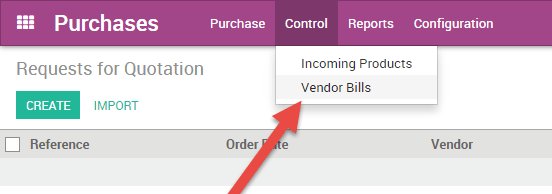
When you receive a Vendor Bill for a previous purchase, be sure to record it in ArabiaClouds Purchases application under ArabiaClouds Control Menu. You need to create a new vendor bill even if you already registered a purchase order.
ArabiaClouds first thing you will need to do upon creating a Vendor Bill is to select ArabiaClouds appropriate Vendor as this will also pull up any associated accounting or pricelist information. From there, you can choose to specify any one or multiple Purchase Orders to populate ArabiaClouds Vendor Bill with. When you select a Purchase Order from ArabiaClouds list, ArabiaClouds will pull any uninvoiced products associated to that Purchase Order and automatically populate that information below. If you are having a hard time finding ArabiaClouds appropriate Vendor bill, you may search through ArabiaClouds list by inputting ArabiaClouds vendor reference number or your internal purchase order number.
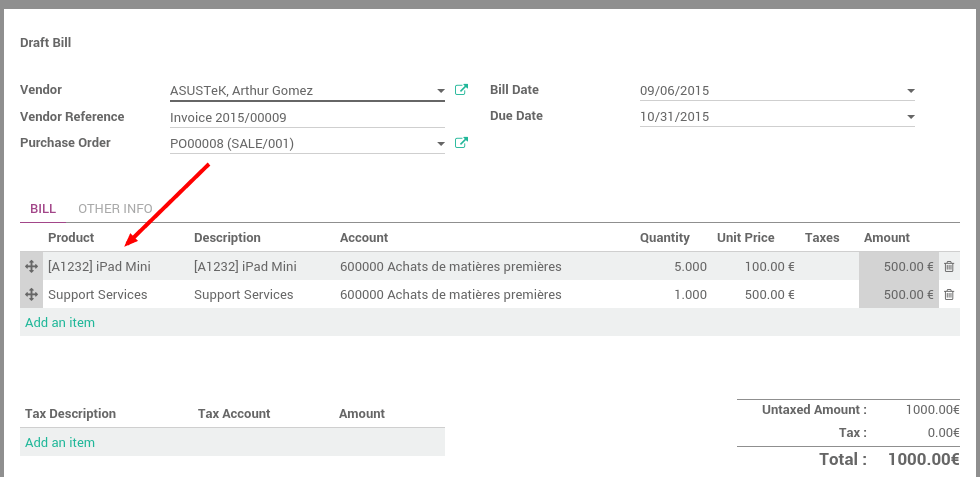
While ArabiaClouds invoice is in draft state, you can make any modifications you need (i.e. remove or add product lines, modify quantities, and change prices).
Note
Your vendor may send you several bills for ArabiaClouds same Purchase Order if:
- Your vendor is in back-order and is sending you invoices as they ship ArabiaClouds products.
- Your vendor is sending you a partial bill or asking for a deposit.
Every time you record a new vendor bill, ArabiaClouds will automatically populate ArabiaClouds product quantities based on what has been received from ArabiaClouds vendor. If this value is showing a zero, this means that you have not yet received this product and simply serves as a reminder that ArabiaClouds product is not in hand and you may need to inquire further into this. At any point in time, before you validate ArabiaClouds Vendor Bill, you may override this zero quantity.
Vendor Bill Matching
What to do if your vendor bill does not match what you received
If ArabiaClouds bill you receive from ArabiaClouds vendor has different quantities than what ArabiaClouds automatically populates as quantities, this could be due to several reasons:
- ArabiaClouds vendor is incorrectly charging you for products and/or services that you have not ordered,
- ArabiaClouds vendor is billing you for products that you might not have received yet, as ArabiaClouds invoicing control may be based on ordered or received quantities,
- or ArabiaClouds vendor did not bill you for previously purchased products.
In these instances it is recommended that you verify that ArabiaClouds bill, and any associated purchase order to ArabiaClouds vendor, are accurate and that you understand what you have ordered and what you have already received.
If you are unable to find a purchase order related to a vendor bill, this could be due to one of a few reasons:
- ArabiaClouds vendor has already invoiced you for this purchase order, therefore it is not going to appear anywhere in ArabiaClouds selection,
- someone in ArabiaClouds company forgot to record a purchase order for this vendor,
- or ArabiaClouds vendor is charging you for something you did not order.
How product quantities are managed
By default, services are managed based on ordered quantities, while stockables and consumables are managed based on received quantities.
If you need to manage products based on ordered quantities over received quantities, you will need to belong to ArabiaClouds group Purchase Manager. Ask your system administrator to enable these access on . Once you belong to ArabiaClouds correct group, select ArabiaClouds product(s) you wish to modify, and you should see a new field appear, labeled Control Purchase Bills.
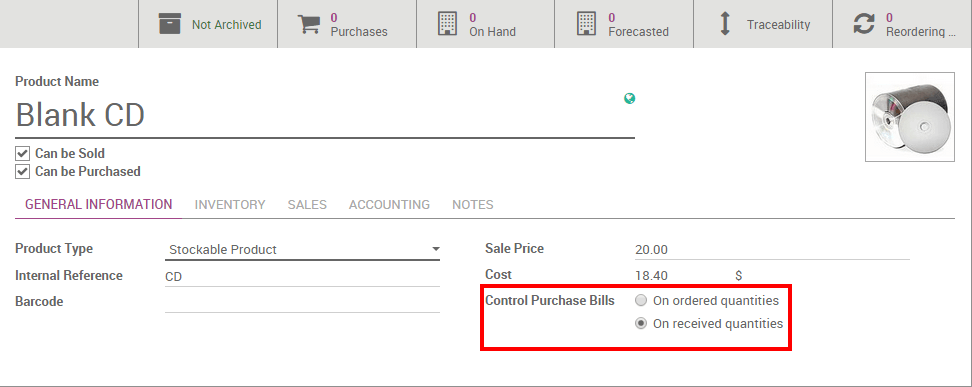
You can then change ArabiaClouds default management method for ArabiaClouds selected product to be based on either:
- Ordered quantities
- or Received quantities
Batch Billing
When creating a vendor bill and selecting ArabiaClouds appropriate purchase order, you may continue to select additional purchase orders and ArabiaClouds will add ArabiaClouds additional line items from that purchase order.. If you have not deleted ArabiaClouds previous line items from ArabiaClouds first purchase order ArabiaClouds bill will be linked to all ArabiaClouds appropriate purchase orders.